Copy vs. scan on a copier
Use Copy to make paper copies from a paper original. Use Scan to save a paper original as a file, such as a PDF. If the original is already a file, use Print to put it on paper.
Choose the mode by what you need back
- Paper handouts
- Choose Copy. Set the number of sets and whether you want one-sided or two-sided output. Check one set before making the rest.
- A PDF to send or file
- Choose Scan. Choose an approved destination and PDF as the file type. Open the delivered file to check the page count and order.
- A file and a paper set
- Scan the original, check the PDF, then print from that file. Keep the PDF so you can print another set without feeding the original again.
Check both sides of the original
Two-sided input and two-sided output are separate settings. Five double-sided sheets with content on both faces should yield ten pages in a complete scan. When copying the same original to double-sided paper, one set should use five sheets.
Make a two-sided paper copy
- Load the original in a feeder that supports two-sided originals. Use the glass for a bound item and follow the prompts for each side.
- In Copy, set the original and the output to two-sided. Use the binding setting that keeps the backs upright when turned.
- Print a proof set and check both sides and the order before printing the rest.
Save both sides in one PDF
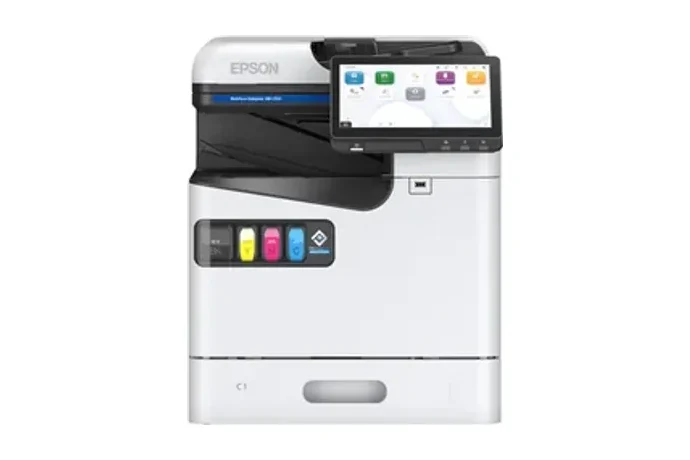
- Choose Scan and your approved destination. On the AM-C550, use To Network Folder/FTP for a configured SMB share.
- Set the original to two-sided and choose PDF. Check blank-page removal if every face must be preserved.
- Open the PDF at the destination and check that every back page arrived upright and in order.
Can you search the PDF?
A PDF from a copier may contain page images. Run optical character recognition (OCR) to add searchable text. Test it by searching for a known invoice number or name and checking that the result matches the original.
If the job is just to share a PDF, start with an approved scan destination. If the job is to extract fields or keep searchable business records, use the same test document to check the next step too.
Extract data or file the record after scanning
Use Paige when you need values from a scan, such as invoice numbers or line items. Use Content Central when you need to file documents and find them later. Paige can send documents to a configured Content Central destination. Both are products from Ademero, which operates CopierGuide.
Run one copy and one scan before you buy
Bring five representative two-sided sheets. Ask to copy them with the settings you use and send a single PDF to your approved destination. Check the backs, fine print and time from pressing Start until you have the full set or file.