
Choosing a wireless copier for your office
A phone on staff Wi-Fi can print to an AirPrint copier connected by Ethernet when your network lets the phone find and reach it. Choose the copier’s connection based on where it will sit and how people scan and print.
Three models with different Wi-Fi options
Compare the U.S. configurations below. Have the seller confirm which option is installed on the machine you will receive.
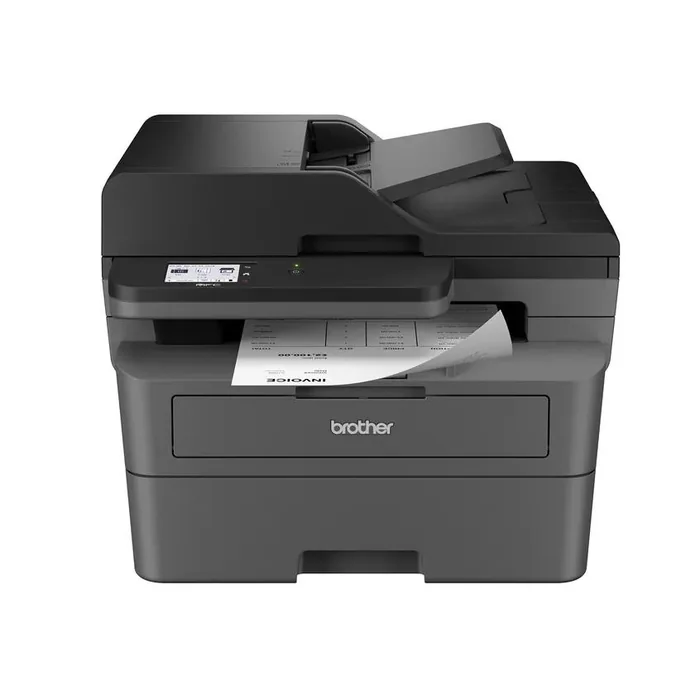
Desktop black-and-white printing
Brother MFC-L2820DW
Built-in dual-band Wi-FiBrother lists 2.4 and 5 GHz Wi-Fi, Ethernet, AirPrint and Mopria. Choose it for everyday black-and-white jobs. Its feeder scans one side at a time.
Brother U.S. product specifications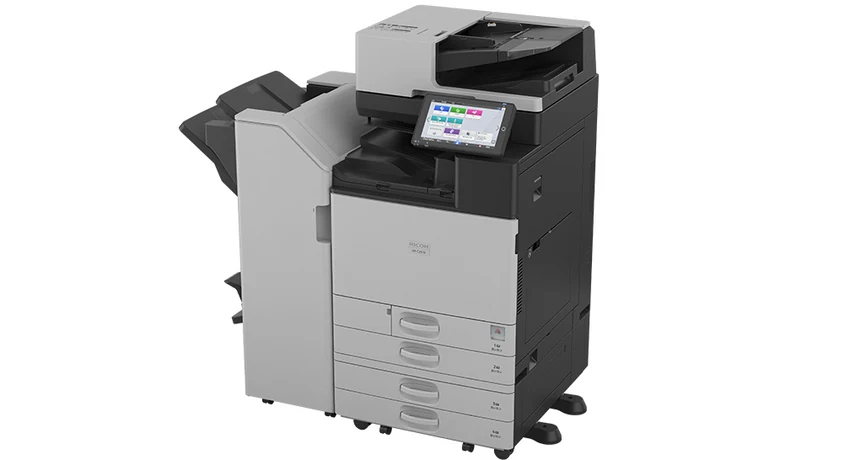
Shared office color and 11 × 17
Ricoh IM C3010
Optional wireless LANRicoh lists Ethernet as standard and Wi-Fi as an option. This 30 ppm color model has a 220-sheet two-sided feeder. If the copier needs to join Wi-Fi, ask the dealer to list the installed wireless interface on the quote.
Ricoh U.S. IM C3010 and C3510 specification sheet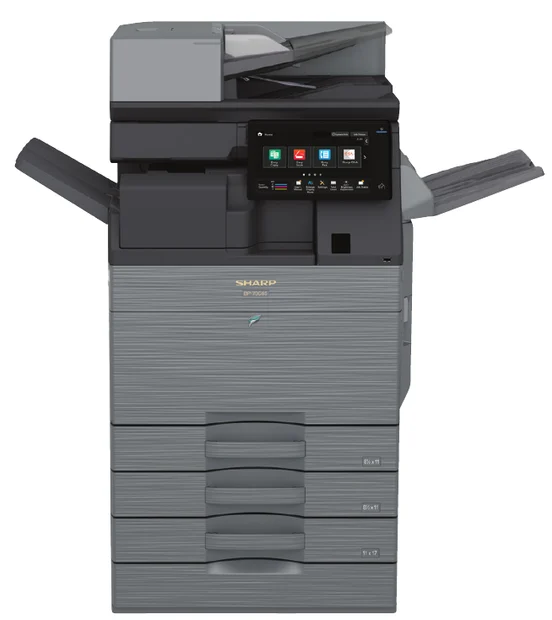
Busy departments printing in color
Sharp BP-70C65
Built-in dual-band Wi-FiSharp lists built-in wireless LAN on the BP-70C65. Its manual lists the BP-EB10 as an option on the related BP-50C series. Match the exact model number when comparing bids.
Sharp U.S. manual, wireless LAN specificationsHow do phones and laptops reach the copier?
- Copier wired to the office network
- With an Ethernet connection, staff can still print wirelessly from supported devices when the office network provides discovery and access. Test Apple AirPrint or the Android print service your team uses on the staff network.
- Copier joins the office Wi-Fi
- Use this when the copier’s location has no practical Ethernet drop. Confirm that the installed wireless hardware supports the office’s network authentication. Test at the proposed location with a long print or scan job.
- Phone connects directly
- On machines that support Wi-Fi Direct, a phone can connect to the printer directly. Check whether IT allows that mode. For visitor printing, ask about an approved guest print queue or release process before opening access to a staff device.
Test before accepting the installation
- Use a normal staff login and device
- Print a real PDF from a phone and a workstation on the networks they use every day. For shared offices, ask IT if each group can discover and reach the copier.
- Run a full job after the copier wakes
- Send a two-sided file on the paper you use. Wait for the final sheet, then repeat after sleep. If you use different trays or finishing in your workflow, include those in the test.
- Scan to your actual destination
- Send a two-sided packet from the panel to the mailbox, network folder or approved capture app in your quote. Open it using the person’s normal permissions and check the page order and searchable text.
- Itemize the setup
- Get the installed wireless option, network work, mobile print setup, scan destinations and support responsibility in writing. Ask who restores print and scan access after a network or password change.
For Windows 11 workstations, test the approved print queue and scanner software as part of installation.
Get an itemized copier and setup quote
Share your ZIP code, models you’re considering and how your staff needs to print and scan.