
Network copiers for shared printing and scanning
Choose a copier that works with your actual print queue, sign-in rules and scan destination. Ask the dealer to run the same jobs on each machine using a staff account before you sign.
Three network copiers to test
A Canon fleet with saved scan destinations
Canon imageRUNNER ADVANCE DX C5860i
Set up a shared-folder destination from the address book. Use Canon’s Check Connection step and verify that a complete document arrives under your staff’s access rules.
Canon address book instructions · Compare C5800 configurations
An HP fleet using scan shortcuts
HP Color LaserJet Enterprise MFP M776dn
Have the administrator demonstrate a Network Folder Quick Set using the credentials your policy allows. Run the shortcut from the panel and open the PDF at the destination.
HP M776 network folder guide (PDF) · Compare three M776 configurations
A busy department that prints and scans in parallel
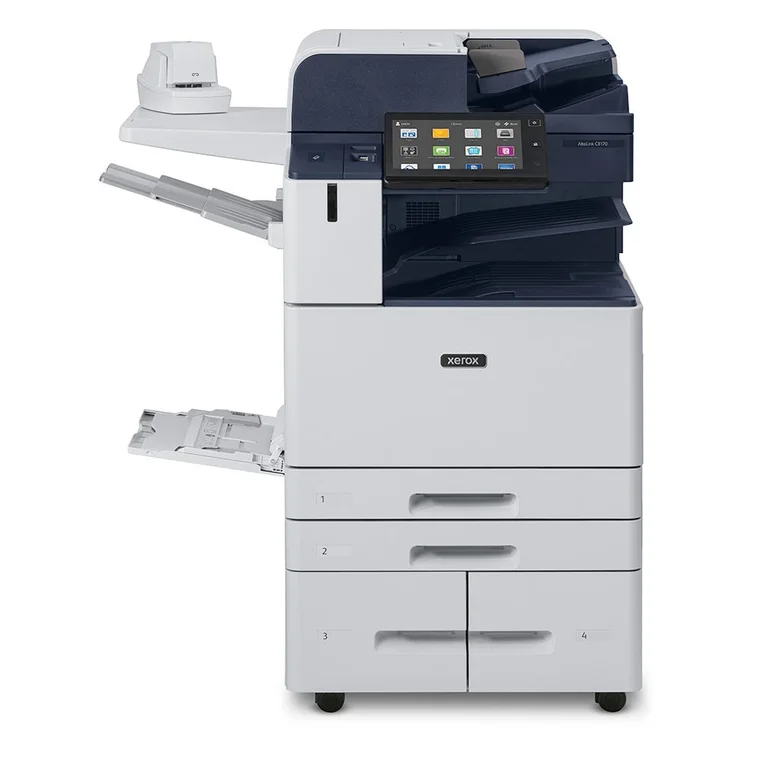
Xerox AltaLink C8170
The C8170 is rated at 70 ppm with a 250-sheet duplex feeder. Run a long color job while another person scans a batch. Time when each job reaches its destination and check that the queue keeps moving.
Xerox C8100 specifications (PDF) · Compare C8170 and C8270 prices
Decide how staff will connect
Confirm whether the installation uses Ethernet or the exact optional wireless kit. Name the print queue, driver or approved cloud print service. For multiple sites, ask IT who deploys queues, updates firmware and reviews failures.
Give the copier a saved, approved scan destination and test it from the panel. If the destination is a Windows share, ask IT to verify the host’s signing policy and the scanner account’s access. Check Windows scan-to-folder requirements · Run a Windows print pilot.
Run four jobs before accepting the installation
- Print from a normal account. Use the actual queue and driver or cloud service. Print a duplex job and check paper size, color and any required finishing. Confirm someone on a restricted account can only see the printers and jobs they should.
- Release a held job at the panel. If your office needs secure release, submit a job from a normal user account and release it with the approved PIN or sign-in method. Confirm what happens when the user cancels or never releases the job.
- Send a scan to the approved destination. Send a redacted two-sided sample from the staff shortcut. Open it at the destination and check every page and its orientation. For a watched folder, check both intake and the receiving application.
- Confirm how IT handles a failed job. Ask the technician to demonstrate an unavailable destination in the test environment. Find the job in the log, record who is alerted and check whether a safe retry creates a duplicate.
If staff retype fields from scans, test what happens after delivery. Ademero’s Paige can pick up files through its Windows Folder Monitor and send them to a scan job. Compare the exported fields with the original document. Ademero publishes CopierGuide. Paige Folder Monitor setup.
Get the network setup priced in writing
Separate the machine from installation, logins, software licenses and support. Ask who will run the acceptance jobs in your office and which work is included in the price.