
Choosing a copier for a healthcare office
Ask the dealer to hold a sample print job until staff sign in, send a two-sided scan to your approved destination, and show how the device stores and clears job data. Run these checks on the exact configuration you’ll use.
What should a healthcare office ask about HIPAA?
HHS explains that the HIPAA Security Rule calls for administrative, physical and technical safeguards for electronic protected health information (ePHI). The right safeguards depend on how your organization handles it. Include the copier’s settings, staff procedures, scan destinations and vendors in that review. Read HHS’s Security Rule summary.
Ask your privacy or compliance contact whether a business associate agreement (BAA) applies. HHS lists a copier technician whose contracted work requires access to protected health information as an example of a business associate. Its repair FAQ treats repairs where such access would only be incidental differently. If a cloud service stores or processes ePHI on your behalf, review HHS’s cloud guidance before enabling that route.
Three models to test
Choose by print size and scan workload first. The features below come from the manufacturers. Have the dealer verify how they work with your network, drivers, installed options and software.
Brother lists Secure Print, Secure Function Lock and an integrated NFC reader.
Have staff release a held sample using the actual driver and sign-in method. Check which walk-up functions a visitor can use.
Xerox documents PIN or network authentication for Secure Print and lists the internal hard disk as optional.
Ask which storage is installed. Test print release for two user accounts and confirm what the admin can see in events.
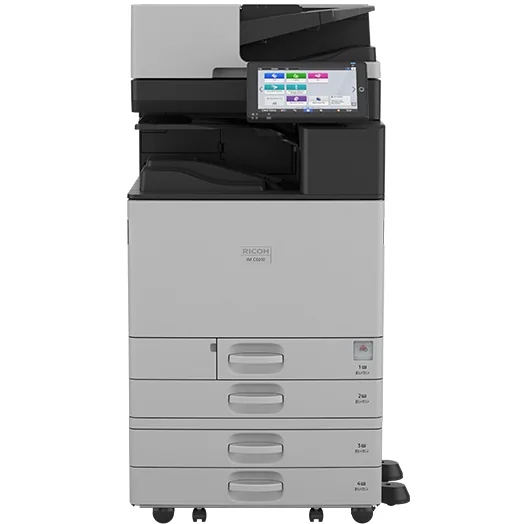
Ricoh lists user authentication and a data overwrite feature.
On a used unit, verify the serial number, installed storage, previous data sanitization, firmware, and service coverage.
U.S. asking prices checked . Ask for the installed price, any required licenses and local service on a separate quote.
Four checks before you accept a copier
Use fictional documents in the demo. Have a staff member and IT lead run the same checks on each quoted setup.
- Release a held print job. Print a fictional intake form from the same driver staff will use. At the panel, verify when the job appears, who can release it and how an abandoned job expires. Repeat from a second staff account.
- Send a scan to an approved destination. Use a fictional two-sided packet. Check the finished file and page order at the actual destination. Verify which accounts can open it and whether the panel lets users choose unapproved destinations. If an EHR receives scans, test the specific import route in its test environment.
- Check the event record. Ask an administrator to find the test jobs and explain which events, users and fields the device or print service records. Agree on access and retention for those logs. Check that file names and previews do not surface sensitive details to staff who do not need them.
- Check storage, support and pickup. Record the installed drive or storage, firmware and any enabled job storage. Get the vendor’s procedure for clearing data when storage is replaced, the device is repaired or the lease ends. Put responsibility and the record you expect to receive in writing.
The FTC advises businesses to plan for secure handling of copier storage at purchase, during use and when the copier leaves. Read the FTC’s copier data security guide.